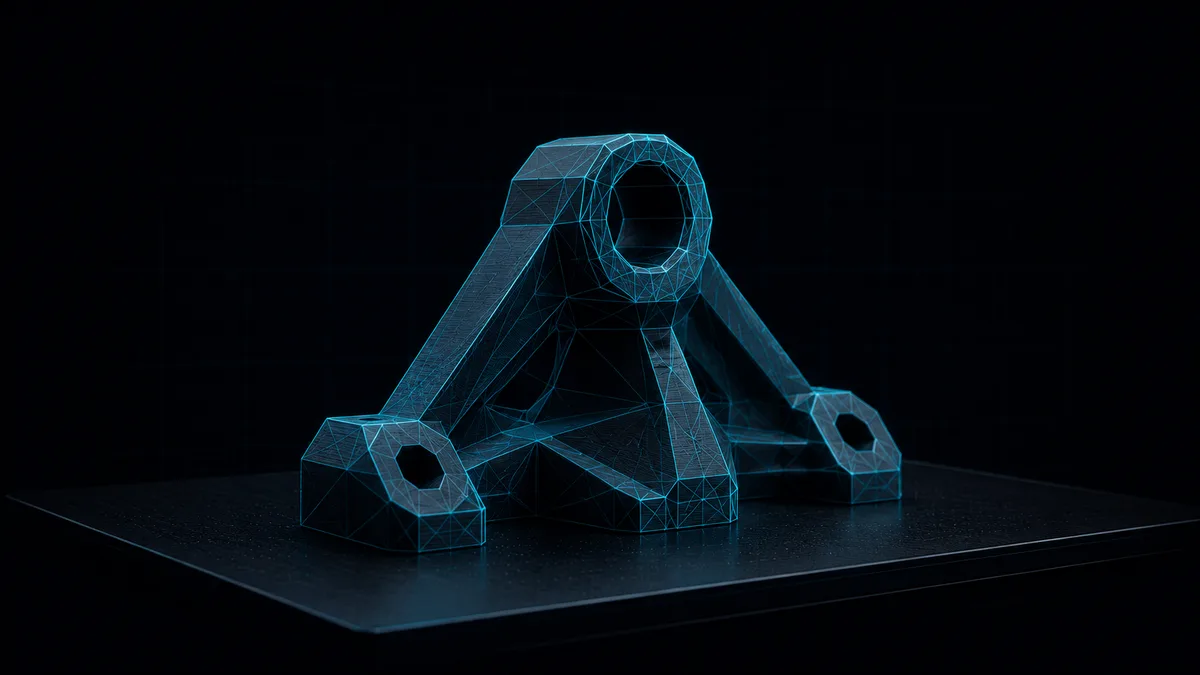
An STL file is a triangle-mesh description of a 3D model — a list
of flat triangular facets and their surface normals, nothing more.
It is the format every 3D-printing slicer reads before it generates
toolpaths, which is why a .stl lands in your downloads the moment
you grab a model from Thingiverse, Printables, or a vendor. Loft’s
STL Viewer opens binary or ASCII STL right in the browser tab — and
nothing uploads.
What STL actually is (and isn’t)
STL stands for “stereolithography,” the early 3D-printing process it
was built for in the late 1980s. The format is deliberately dumb: it
stores only geometry — a soup of triangles — with no colour, no
units declaration, no scene graph, no materials. A binary STL packs
each facet into 50 bytes; an ASCII STL spells the same triangles out
in plain text. Both describe the identical shape.
That dumbness is the reason it survived. Every CAD package, every
mesh tool, and every slicer can read and write it. The cost is that
an STL carries no metadata about what unit a number means — a value
of 25 could be 25 millimetres or 25 inches, and the file won’t say.
In practice it’s almost always millimetres, which matters when you
measure.
Who needs to open one — and why it’s annoying
If you 3D-print, an STL shows up constantly: a part someone shared, a
remix you want to sanity-check before slicing, a client’s model you
need to eyeball for orientation or wall thickness. The frustrating
part is that looking at it usually means opening heavyweight
software.
The desktop route is PrusaSlicer, Cura, Bambu Studio, MeshLab, or
Blender — all capable, all a download-and-install, and all overkill
if you just want to rotate a model and check it isn’t a tangle of
flipped normals. The browser route is sites like viewstl.com or
online-3d-viewer.com, which work fine but upload your file to a
server first. For a public Benchy that’s no issue. For a client’s
proprietary part under NDA, it is.
How Loft opens it
Drop a .stl onto the STL Viewer —
or click Open and pick one — and it renders immediately. The viewer
auto-detects whether the file is binary or ASCII; you don’t choose.
Parsing the triangles is done in plain JavaScript, and the mesh is
drawn in a Three.js WebGL2 scene, the same battle-tested renderer
behind a huge slice of the 3D content on the web.
From there it behaves like an orbit viewer should. Left-drag orbits
the camera, right-drag (or a two-finger trackpad drag) pans, and
scroll zooms. A reset-camera button reframes the model in one click
when you lose it off-screen. You can switch between three render
modes — shaded, wireframe, and shaded-with-edges — which is the fast
way to spot whether a surface is actually solid or secretly full of
gaps.
Two features earn the viewer its keep beyond just spinning a model
around. The first is point-to-point measurement: click Measure,
click two points on the surface, and the distance prints in the
status bar in the file’s native units — which, per the section above,
is almost always millimetres. Good for confirming a peg matches a
hole before you commit an hour of print time.
The second is the PNG screenshot. Click the camera icon and the
current viewport saves as an image — handy for a slide, a build
log, or an email to whoever sent you the model. The status footer
along the bottom shows the triangle count and file size as you work,
so a 40,000-triangle part reads differently at a glance than a
2-million-triangle scan that’s going to make your fan spin up.
I’ll be honest about one thing I find genuinely useful here: the
footer also surfaces a version string from our in-browser CAD engine
(a Rust module compiled to WebAssembly). Today that’s a wiring check
— the engine is being built for full STEP support in a later release,
and the STL path you use right now is the pure-JavaScript one. I left
the readout visible because I’d rather show the plumbing than hide it.
Not just STL
The STL Viewer is the named front door, but the underlying viewer is
format-agnostic. Drop an OBJ, PLY, GLB, glTF, or 3MF and it
auto-detects and renders that too — the same orbit scene, the same
measure and screenshot tools. There are dedicated landing pages for
each format if that’s what you searched for: the
OBJ viewer for Wavefront files and
the GLB viewer for textured glTF
models, among others. STL is just the default flavour.
The no-upload part is the whole point
Everything above happens inside your browser tab. The STL’s bytes are
read into memory, parsed locally, and handed to WebGL on your own GPU.
There is no upload step, no server round-trip, no copy of your model
sitting in someone else’s bucket. For a part under NDA — or any file
you’d simply rather not hand to a “free online viewer” you haven’t
vetted — that’s the difference that matters.
You can verify the claim yourself rather than take my word for it:
open your browser’s network panel, drop a file, and watch for a
request that carries it. There won’t be one. The
how-it-works pillar walks through why the
browser’s own security model enforces that boundary, and a
companion post tells the same
story for the Gerber viewer on a phone. A side benefit: after your
first visit the code is cached, so the viewer keeps working with the
Wi-Fi off.
Honest limits
The viewer is read-only. It will render, orbit, measure, and
screenshot an STL — it will not let you edit, repair, or re-export
the mesh. If you need to fix non-manifold geometry, fill holes, or
decimate a dense scan, that’s a job for MeshLab or your slicer’s
repair pass; this is an inspection tool, not a modeller.
A few more edges worth stating plainly. STL stores no colour or
material, so every model renders in a neutral shaded look — that’s
the format, not a missing feature. Files load up to 100 MB; a
multi-million-triangle scan near that ceiling may pause briefly while
JavaScript parses it. And STEP, IGES, and DWG are not mesh formats —
STEP support is in active development, while IGES and DWG sit outside
the browser viewer’s scope, so convert those upstream to STL or GLB
first.
Because it’s just a web page, the viewer runs wherever a modern
browser does: Windows, macOS, Linux, ChromeOS, plus iPad and Android
where a desktop slicer often isn’t an option at all. Same URL, same
code, no per-platform binary and no app store. Drop a file from your
phone’s downloads and orbit it on the train.
The takeaway: if you need to look at an STL — check orientation,
measure a feature, grab a screenshot — you don’t need to install
anything or upload your part to do it. Open the
STL Viewer, drop the file, and spin
it around.