Tutorial May 11, 2026 · 5 min read
Why offline-capable tools survive Wi-Fi outages
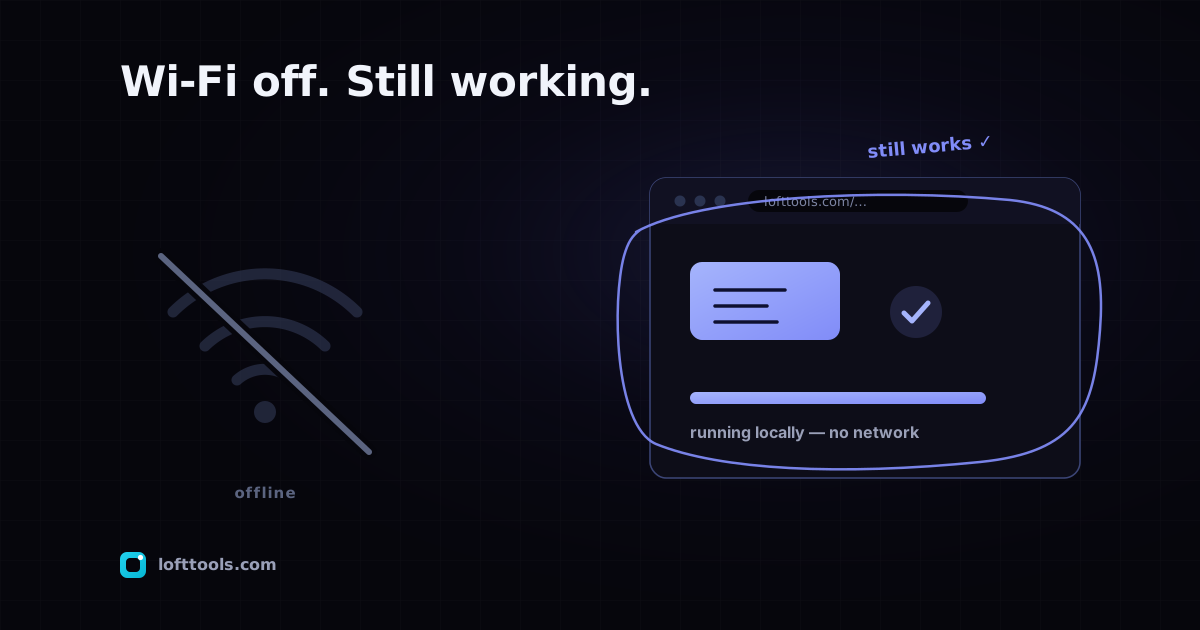
A "cloud" PDF tool stops working the moment your Wi-Fi blips. A browser-side tool that uses a service worker keeps running. Here is what makes the difference, how to set it up on Loft, and what genuinely still needs the network.
By Khine 948 words Extractable lead
A cloud PDF tool needs the network because the work happens
elsewhere. Lose Wi-Fi mid-task and the tool freezes, the upload
stalls, the spinner spins. A browser-side tool that’s cached its code
just keeps going — the work happens on your machine and doesn’t care
whether the network is up. The mechanism that makes this work is the
service worker, and it’s not new. Most modern web apps could ship
it; most don’t bother.
(I used Loft’s compress-pdf tool on a flight from SFO to JFK last
March — full offline, no Wi-Fi purchased, worked end to end. That’s
when I knew the pattern was right.)
The service worker, briefly
A service worker is a small script the browser keeps running in the
background, separate from the page. It can intercept network
requests, cache responses, and serve cached responses without going
to the network. When you visit Loft, the browser registers our
service worker on first load. After that, every request the page
makes goes through the worker first. If the worker has the requested
resource cached, it returns it from disk; if not, it fetches from the
network and adds it to the cache for next time.
The pillar at
/docs/how-it-works/ walks through this in
section 3.
What’s cached, by category
Loft uses four separate cache namespaces:
- Offline shell — the page that renders when you’re offline,
precached at install time.
- Astro asset cache — JavaScript and WebAssembly chunks fetched
at runtime. Bounded eviction, so heavy users don’t end up with
multiple stale generations.
- Pinned-tool cache — tools you’ve pinned from your dashboard.
Never auto-evicted. Designed to be reliably available offline.
- OCR / ML model cache — opt-in heavy assets (PaddleOCR weights,
background-remove models). Cached only after you’ve used the tool
online once.
You don’t have to think about which cache holds what. The
practical rule: if you’ve used a tool while online, it’ll work
offline. Pinning a tool guarantees this — pinned-tool code is
explicitly preserved.
- Open the tool while online. Wait for it to fully load.
- (Optional but recommended) Pin it from the in-tool pin button or
from the dashboard.
- Disconnect from Wi-Fi.
- Reload the page or close and reopen the tab.
- The tool opens, no different from online.
This works in airplanes, on trains in tunnels, at conferences where
Wi-Fi is overloaded, and in the office while IT is rebooting the
router. The file processing never needed the network in the first
place; only the code download did, and that’s already cached.
What still needs the network
Even with a service worker, a few things will fail offline:
- First visit to a tool. Code hasn’t been cached yet. You need
one online session before offline works.
- First use of OCR or background removal. These pull a model
weight file (around 25 MB for PaddleOCR) on first run. Cached
after that.
- Sponsor checkout. Stripe needs to talk to its servers; that
page won’t function offline.
- Analytics beacons. Will queue and fire when you come back
online if your browser supports background sync (most do). They
drop silently if the queue overflows.
Everything else — every file operation, every calculator, every
viewer — runs on your machine and doesn’t care about the network.
The infrastructure pattern. A cloud PDF tool that processes
server-side genuinely cannot work offline — the work happens on
their server, and reaching the server requires the network. Adding
a service worker would only make the splash screen load offline;
the moment you tried to use the tool, the missing upload would
break.
Browser-side architecture lets us actually deliver offline because
the work was already going to happen on your device. The service
worker is the last piece that closes the gap.
Honest limits
- First visit needs the network. Can’t help that — you have to
download the code at least once.
- Service worker storage has a quota. Browsers cap how much a
site can keep in cache (usually a few hundred MB to a few GB
depending on free disk space). If you pin a lot of heavy tools,
older ones may evict.
- iOS is more conservative. Safari sometimes evicts service
worker caches faster than Chrome does, particularly if a site
hasn’t been visited in a while. You may need to reload an iOS PWA
online occasionally to keep its offline cache warm.
FAQ
Does the file I’m processing get saved offline?
No. The file you drop in goes into the tab’s memory; processing
happens; result downloads. Closing the tab releases everything. The
service worker caches code, not your file content. See
Post 5 on tab close behaviour.
What if my browser updates the service worker mid-edit?
Updates land on next reload. If we ship a fix while you’re using the
site, the new version takes effect after you refresh — your current
session is unaffected.
Is offline a privacy upgrade?
Indirectly, yes. A tool that genuinely works offline is structurally
incapable of secretly uploading your file, because there’s no
running network connection. Don’t take “works offline” as proof —
the
Network-tab verification
is still the right check — but it’s a strong supporting signal.
Can I disable the service worker?
Yes, in DevTools → Application → Service Workers → Unregister.
Re-registering happens on next visit if you change your mind.
The pillar at /docs/how-it-works/ covers the
service-worker architecture in section 3 and the cache layout in
section 8. The
changelog tracks the offline-related polish work.