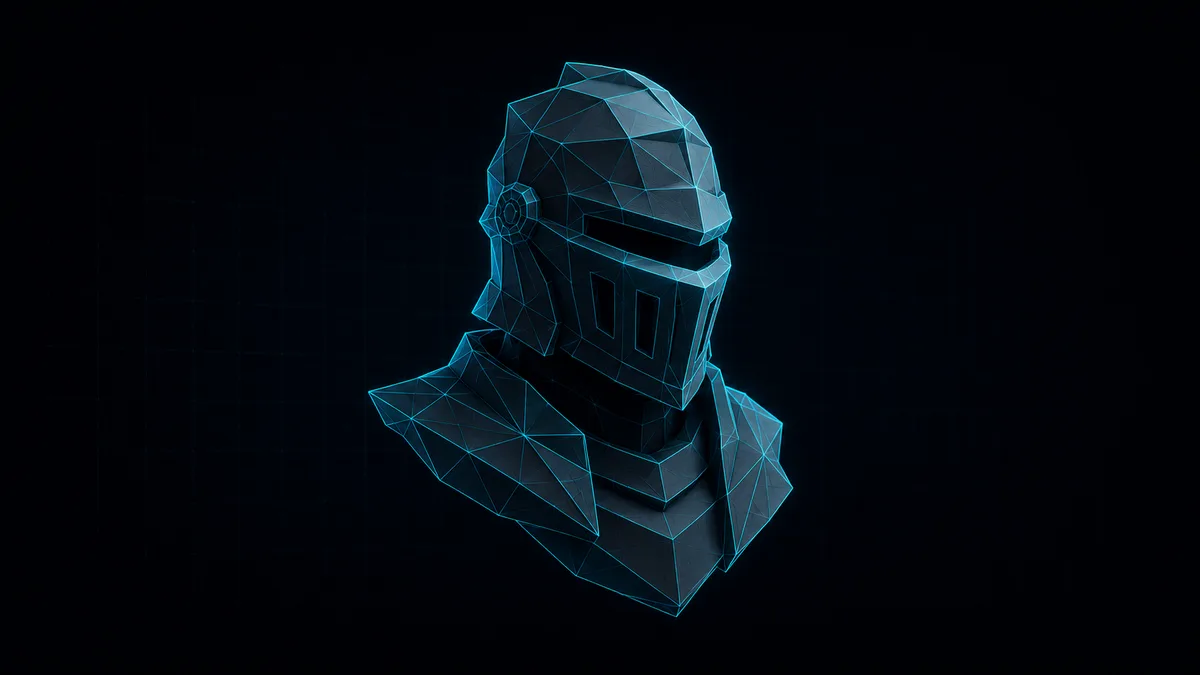
A Wavefront OBJ is a plain-text 3D geometry format that stores a mesh as a list of vertices, faces, and optional texture coordinates and normals. It dates to the late 1980s, it is human-readable, and virtually every 3D package — Blender, Maya, ZBrush, photogrammetry scanners, game-asset pipelines — can export it. That ubiquity is exactly why a .obj file lands in your inbox and you have nothing installed that opens it.
What an OBJ file actually contains
Open one in a text editor and it reads like a spreadsheet of coordinates. Lines beginning v are vertices — three floats for X, Y, Z. Lines beginning f are faces, referencing those vertices by index. You may also see vt (texture coordinates), vn (vertex normals), and an mtllib line pointing at a companion .mtl file that holds material colours and texture-map references.
The format is geometry-first. An OBJ on its own describes shape and topology; colour and surface detail live in that separate .mtl file and the image files it points to. That split matters once you start opening them, and it shapes what any viewer can show you from a single dropped file.
Who needs to open one — and the usual pain
Game artists receive props and characters as OBJ. 3D-scan and photogrammetry workflows spit out dense OBJ meshes. CAD and product folks get OBJ exports for quick visual review. The recurring problem is that “just take a look at this model” assumes you have Blender, Maya, or MeshLab installed, configured, and patient enough to launch.
Maya is a paid licence. Blender is free but a heavyweight download, and launching it to spin a mesh for ten seconds is overkill. The web alternatives mostly ask you to upload the file to their server first — which is a non-starter when the asset is a client’s unreleased character or a proprietary scan.
How Loft’s OBJ viewer handles it
Drop a .obj into the OBJ Viewer and it renders in a Three.js WebGL2 scene — the same WebGL rendering engine that powers most 3D on the modern web. Drag to orbit, right-click-drag (or two-finger drag on a trackpad) to pan, scroll to zoom. A reset-camera button reframes the mesh in one click when you lose it off-screen, which, inspecting an unfamiliar model, you will.
Three render modes cover the common inspection needs: shaded for the solid form, wireframe to read topology and edge flow, and shaded-with-edges to see both at once. The status footer reports the triangle count and file size, so you know immediately whether you’re looking at a 2,000-triangle game prop or a four-million-triangle scan.
Measuring and capturing
Click Measure, then click two points on the surface, and the viewer reports the straight-line distance between them in the file’s native units. OBJ doesn’t carry an explicit unit declaration in the file, so the number is in whatever scale the model was authored at — worth keeping in mind before you quote a dimension off a downloaded asset.
The Screenshot button exports the current viewport as a PNG, framing and all. It’s the fastest way to drop a model preview into a slide, a ticket, or a message without screen-recording your whole desktop. Both features are the same ones the sibling STL Viewer uses — the mesh formats share one viewer under the hood, with a dedicated landing page per format.
Files never leave your tab
This is the part that separates Loft from most “online OBJ viewer” results. The parsing and rendering happen entirely in your browser tab via WebGL — there is no upload step, no server round-trip, no copy of your file sitting in someone’s bucket. The technique that makes this work is called client-side rendering, and it’s worth a search if you want to understand why a browser can now do a job that used to require a desktop binary; the how-it-works pillar is the Loft-side version of that story.
Practically, it means you can open a client’s unreleased game asset or a confidential 3D scan on a shared or borrowed machine without it touching the network. After the first visit the viewer is cached as a PWA, so it also opens offline — handy on a plane or a locked-down studio network.
The honest limits
The viewer is read-only. It will not let you edit the model, retopologise it, or re-export it — it’s for looking, measuring, and screenshotting, not authoring. If you need to change geometry, you’re back to Blender or Maya for that part.
The bigger caveat is materials. In this release the viewer renders geometry only: a companion .mtl file dropped alongside the OBJ isn’t loaded, and external texture images the .mtl references aren’t fetched. Your mesh always renders with a clean default shaded material, which is exactly what you want for inspecting form and topology — but it won’t show the painted textures. For a fully textured model, export to GLB instead and use the GLB / glTF Viewer; GLB packs geometry, materials, and textures into one self-contained file, which sidesteps the multi-file problem entirely.
One more: very dense meshes — the multi-million-triangle output of a high-resolution scan — can cause a brief pause while the parser works through the text. That’s a limit of parsing a large plain-text file in JavaScript, not a server queue. Files up to 100 MB load fine on a modern browser.
Because the underlying viewer is format-agnostic, the same page accepts STL, PLY, GLB, glTF, and 3MF on drop — the format is detected automatically from the file, not the extension you clicked. So if your “OBJ” turns out to be an STL the scanner mislabelled, it just opens anyway. Each format also has its own dedicated landing page if you want to bookmark the right one.
There’s no platform-specific build. Anything with a modern browser and WebGL2 — Windows, macOS, Linux, ChromeOS, an iPad, an Android phone — runs the same viewer. That’s the quiet advantage of a browser tool over a native app: I don’t ship a Mac version and a Windows version and an iPad version, because the browser already did that work. Drop an OBJ on whatever device is in front of you and it renders.
Takeaway
A Wavefront OBJ is a plain-text mesh almost every 3D tool can export, which is why it shows up everywhere and why opening it shouldn’t require a heavyweight install. Loft’s viewer gives you orbit, three render modes, point-to-point measurement, and a PNG screenshot, all in a browser tab, with the file never leaving your device. It’s read-only and renders geometry rather than textures — but for “what does this model look like, and how big is this edge,” that’s the whole job.
Open a .obj now at /tools/open-tools/obj-viewer/.