Tutorial May 13, 2026 · 6 min read
Can I really use Loft on my phone without an app?
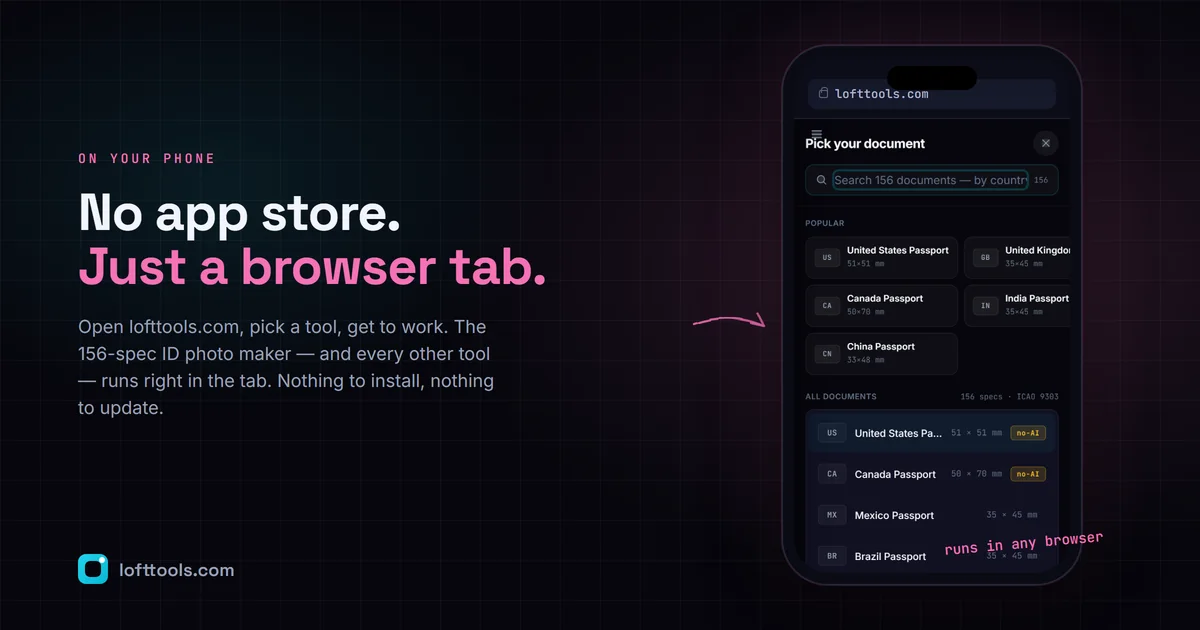
Loft Tools runs in the browser on every modern phone — iPhone Safari, Android Chrome, Samsung Internet — without anything to install from an app store. The mechanics, the memory limits to be aware of, and how to add an icon to your home screen if you want one.
By Khine 1,256 words → ID Photo Maker Extractable lead
Yes — Loft Tools runs in the browser on every phone made in the last
five years. Same URL, same code, same tool list. iPhone Safari,
Android Chrome, Samsung Internet, Firefox mobile, Brave mobile. No
app store, no install dialog, no per-platform binary. The
file-processing operations that used to need a desktop are within
reach of the device already in your pocket.
(Also tested on a Kindle Fire’s underpowered Silk browser. Slow but
works. Yes, that’s how I spent one weekend.)
What actually works on a phone
Most of the catalogue. Specifically:
- PDF tools — compress, merge, split, crop, rotate, deskew,
page-reorder, page-delete, watermark, add header/footer, OCR
(text-only languages), sign, redact.
- Image tools — resize, format-convert, compress, DPI change,
colour-palette extract, QR generation, barcode generation.
- Dev tools — hash generator, UUID generator, IP subnet
calculator, CSV to JSON.
- Cooking & kitchen — sourdough calculator, canning calculator.
- Security — file encryption (small files), secure note sharing.
- Open Anything — Gerber viewer (read-only on phone is fine).
Tools that run a heavy ML model the first time you open them
work on phones but the model download is bigger. PaddleOCR for
non-English OCR downloads ~10–15 MB per language on first use, cached
after. The Premium background-removal model for ID photos is larger
(~115 MB) and only downloads if you enable that feature — it is
strictly opt-in.
How the install-less model works on iOS
Open Safari, type the URL, you’re using the tool. The browser
downloads the page code on first visit (one-time cost of a few MB),
the service worker registers, and subsequent visits use the cached
code. Drop a file from Files.app, Photos, or any share sheet that
hands files to Safari — the file is read into the tab’s memory, the
tool runs, the result downloads via the browser’s normal download
flow. iOS handles the file save through the share sheet, so you can
send the result to Files, AirDrop, Messages, or anywhere else.
There is one iOS-specific limit to know about: Safari enforces a
per-tab memory cap — low hundreds of MB on modern phones. Big PDFs
(a few hundred pages with images), large videos, or 4K image batches
will hit the ceiling before they hit a desktop ceiling. We surface a warning when we can
detect a file is likely to push past the limit. For routine work —
the contract you need to sign, the boarding pass you need to crop, the
recipe scan you want to deskew — the ceiling rarely matters.
How the install-less model works on Android
Identical, with more memory headroom. Android Chrome’s per-tab memory
ceiling is higher than iOS Safari’s, and devices with 6+ GB of RAM
generally process larger files without issue. The file picker
integration is also better — most Android phones can hand any file
in storage straight into a browser-side tool.
If you’d rather have an icon on your home screen, you can install the
site as a Progressive Web App from Chrome’s menu. PWA install
gives you a launcher icon and a standalone window (no browser chrome
visible) while keeping the same browser-tab mechanics underneath.
Nothing about the file-handling changes — it’s still the same code
running locally.
How it works on iPad
Same as iPhone, with the desktop-class Safari memory profile if you’ve
got an M-series iPad or recent iPad Pro. Drop in a file from Files or
from a share sheet, work on it, download the result. The wider screen
also means tool UIs that are tight on phones — like compare-pdf with
its dual-pane view — work comfortably.
Worth noting: Loft Tools is one of the few browser-based PDF stacks
that runs at full feature parity on iPad. Some heavier tools assume
desktop only and ship a stripped iPad version, or none at all
(Bluebeam Revu ended their iPad app on December 31, 2025). If you do
PDF work on iPad as your daily driver, browser-based is increasingly
the only option that still actively ships features.
The privacy story doesn’t change on mobile
A common assumption is that mobile tools must phone home more because
“the browser is more limited.” The opposite is true. Mobile browsers
run the same JavaScript and the same WebAssembly that desktop browsers
run. The
same five-step verification flow from the devtools walkthrough
works on mobile too — though the DevTools experience is harder
(iOS requires Safari’s “Web Inspector” mode connected to a Mac).
The architecture guarantees apply equally: file in browser tab, no
upload endpoint, no third-party file sink. The
pillar on /docs/how-it-works/ covers this in
full.
Honest limits, again
- Memory ceiling matters more on phone. iOS Safari enforces a
per-tab memory cap in the low hundreds of MB; Android Chrome is
higher. A 100 MB scanned PDF with images will struggle on iPhone.
A 5 MB contract won’t notice.
- No desktop DevTools on phone. You can verify the no-upload claim
on a phone, but you’d need to either trust the verification from a
desktop session or use a remote-debug bridge.
- File picker quirks. iOS occasionally won’t let you save certain
output types directly to Files — workaround is to use the share
sheet to AirDrop or save to a cloud drive you trust.
- Background tab pause. Mobile browsers aggressively pause
background tabs to save battery. If you start a 200-page OCR job
then switch apps, the job may slow down or pause until you come
back. Stay in the tab while a heavy job runs.
”Why no native app, though?”
We get this question. A native iOS or Android app would give us:
better memory headroom (no per-tab cap), background processing,
deeper file-system integration, push notifications, app-store
discoverability. It would also require: maintaining two more codebases
(Swift + Kotlin), going through app-store review every change, paying
platform fees, losing the “one URL, all platforms” property, and
losing the “no install” property that’s a feature for many users.
The tradeoff hasn’t tipped for us. The browser is good enough for the
work we do, and good enough is the bar that matters here. If a
specific workflow genuinely needs the native-app advantages, that’s
the right tool for that workflow — not Loft.
FAQ
Does it work on older phones?
Anything running iOS 16+ or a recent Chrome/Edge/Firefox on Android
gets full feature support. iOS 15 and Android 10 are still mostly
functional; older than that and the WebAssembly support gets shaky.
Does it work offline on a phone?
Yes, if you’ve visited the tool while online first. The service worker
caches the code; subsequent offline visits use the cache. Pinned tools
are deliberately set up to work offline. See the pillar section 3 for
the mechanics.
Can I install it like a real app?
Yes via PWA. On Android Chrome: tap the menu, “Install app”. On iOS
Safari: tap the share icon, “Add to Home Screen”. The result is an
icon on your home screen that launches in a standalone window without
the browser address bar.
What if my phone has very low storage?
The first-visit code load is a few megabytes total, similar to a
single webpage with images. After that, cached. PWA install adds a
launcher icon but doesn’t materially increase storage use beyond the
already-cached code.
The pillar at /docs/how-it-works/ covers the
cross-platform model in section 8, and the memory ceiling in section
8’s honest-limits paragraph. The
changelog tracks the mobile-specific polish work that
keeps phones at parity.