Side-by-side or overlay PDF diff with a document-type selector — Document (contracts, reports), AEC / Blueprint (drawings, schematics), or Image-Scan. Highlights pixel-level differences plus a word-level text diff in a modal.
How to check if an online PDF tool uploads your file
Most "free online" PDF tools quietly upload your file to their server. Here is the 30-second check you can run in any browser, with screenshots, that proves whether a given tool ever sends your file off your device.
By Khine1,788 words→ Compress PDFExtractable lead
How to check if an online PDF tool uploads your file
A PDF tool is “uploading your file” when the browser sends the bytes
of that file to a server you don’t control. You can see this happen, or
fail to happen, by opening your browser’s DevTools and watching the
Network tab while the tool runs.
Thirty seconds. Every modern browser. Works on us, works on every
competitor we checked.
What you’ll need
Any desktop browser (Chrome, Edge, Firefox, Safari, Arc).
A PDF file you don’t mind feeding to the tool — pick something
recognisable, 5–10 MB is ideal.
Roughly thirty seconds.
Open DevTools and find the Network tab
Press F12 on Windows or Linux, or Cmd + Option + I on Mac. A panel
opens at the bottom or side of the browser. The exact layout differs
slightly per browser, but every modern one has a tab labelled Network.
Click it. You may see the message “Recording network activity… Perform a
request or hit Ctrl+E to start recording” — that’s normal. Refresh the
page once with DevTools open so the recording starts clean.
The Network tab is the browser’s own log of every request the page makes.
It’s not editable by the page. The site can’t lie to it. Whatever shows up
there really happened, in the order it shows.
Run the tool. Watch what happens.
Drop your PDF onto the tool. Let it finish. Look at the Network panel.
A privacy-clean tool — one that processes the file locally — shows you
two kinds of rows in that list:
Code chunks loaded once, at first paint, before you even touched
the file. These are the JavaScript and WebAssembly modules the tool
uses to do the work. They’re cached after the first visit, so they
often don’t even appear on a second run.
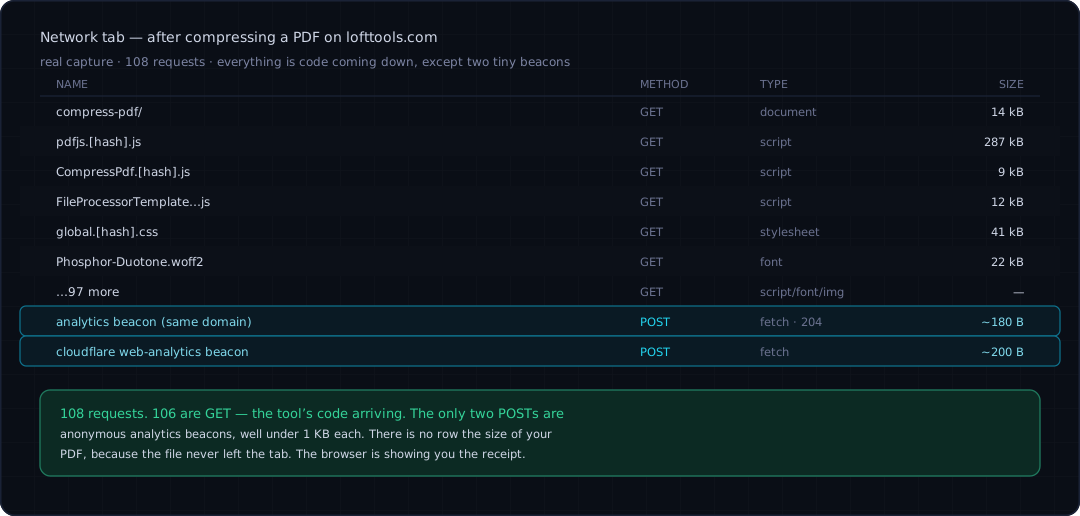
Maybe one or two small beacon requests to a stats endpoint — Loft
sends a single POST to a small first-party analytics endpoint on the
same domain, carrying the tool slug, a duration in milliseconds, and
your file size rounded to coarse size buckets, rounded hard — never
the real byte count. The Size column reads well under 1 KB — a few
dozen to a couple hundred bytes. That’s it.
What you should not see, on a privacy-clean tool, is a request the
size of your file. If you fed it a 7 MB PDF and there’s a 7 MB row in
the list, that’s the upload. The browser is showing you the receipt.
What the Network tab actually shows after a real Compress-PDF run on Loft. 108 requests — 106 are GET, the tool's code arriving. The only two POSTs are anonymous analytics beacons under 1 KB. No row is the size of your PDF, because the file never left the tab. (Best of all: capture your own — it's the verification, not decoration.)
Filter by POST. The story gets clearer.
Click the Method filter and select POST, or type method:POST
into the filter box. POST is the HTTP verb browsers use to send data up
to a server. GET fetches code and assets down. Filtering on POST cuts
out the noise of code loading and shows you only the requests that could
plausibly carry your file.
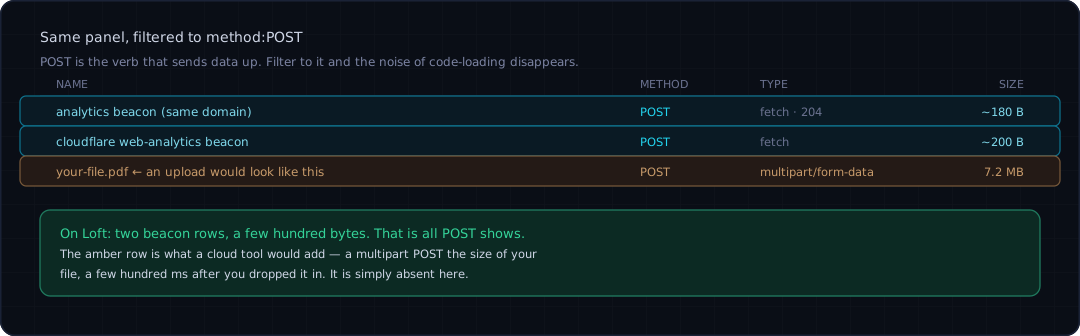
A privacy-clean tool will show either zero POST rows, or a tiny one or
two for analytics, each well under 1 KB. A tool that’s uploading your
file shows a POST that’s the size of the file — usually labelled
multipart/form-data in the Type column, sent a few hundred
milliseconds after you dropped the file in. There’s no way to disguise
this. Browsers will tell you.
Filtered to method:POST, the noise of code-loading falls away. Loft leaves two beacon rows of a few hundred bytes. The amber row is what a cloud tool would add — a multipart upload the size of your file, a few hundred milliseconds after you dropped it in — and it is simply absent here.
What a real upload looks like
For reference: when a tool genuinely uploads your file, the request shows
up with the file’s content type, a Size column matching the file size
(or slightly larger from form encoding), and usually a destination URL
that includes a word like upload, convert, process, or the
tool’s own subdomain. Click it. The Payload tab will literally show
you binary chunks of the file. The browser doesn’t hide this; it makes
it inspectable on purpose so users can verify what their pages are
doing.
There’s nothing inherently wrong with uploading — the tool has to do its
job somehow. The point isn’t that upload is evil. The point is that you,
the user, deserve to know which one you’re using before you drop a tax
return or a signed contract into it.
A second check: is a service worker registered?
DevTools → Application tab → Service Workers in the left
sidebar. A service worker is a small script the browser keeps running in
the background so a page can still respond when you’re offline. If a
tool truly does its work locally, it has a strong incentive to register
one. If it can’t work without a server, it doesn’t bother.
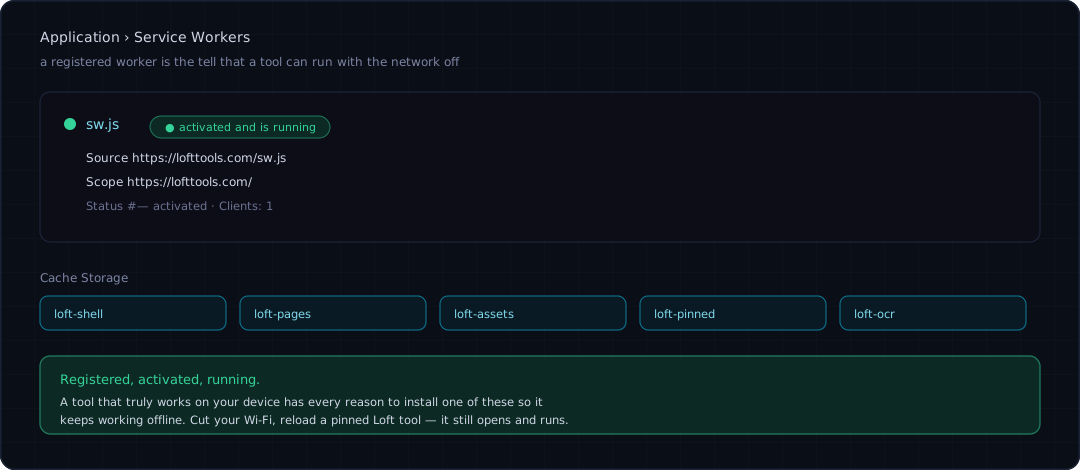
Loft registers a service worker (sw.js) on every page. You’ll see it
listed as activated and is running. Try disconnecting from Wi-Fi, then
reloading a pinned Loft tool — it’ll still open, still run.
Application → Service Workers: Loft's sw.js shows activated and is running, with its offline cache namespaces listed below. A registered worker is the tell that a tool can keep working with the network off — cut your Wi-Fi and a pinned Loft tool still opens and runs.
A third check: what’s in IndexedDB?
Application tab → IndexedDB in the left sidebar. IndexedDB is the
browser’s local database — it’s where a page can store data on your
machine that persists across visits. Loft uses it for pinned-tool
metadata, OCR model files you opted to download, and any explicit
“saved” outputs you asked the tool to keep. It does not store the
content of files you ran through the tool, unless you specifically
clicked save.
Click through the entries. You should see only the tool metadata you’d
expect from how you’ve used the site. No mystery copies of files you
processed.
Honest limits
A couple of nuances worth admitting:
Tesseract OCR (a fallback OCR engine used by some Loft tools) loads
its language data from a CDN the first time you use it. That’s a
download of code and dictionaries, not an upload of your file. You’ll
see the request in the Network tab as a GET, not a POST, and it
carries no file content. After the first run, the data is cached and
even those GETs disappear.
The PaddleOCR model files are similar — a one-time download of
ML weights, on demand, never carrying anything from your file.
Embedded ads on free-tier listing pages (planned for the free
tier, not yet shipped as of 2026-05) will introduce a few extra
GETs to ad networks when they ship. Those will not run on the
file-processing pages themselves, and they won’t carry your file.
We’ll update this paragraph the day that ships.
If you spot something on the Loft Network tab that doesn’t match this
post, send us a note. We’d rather fix wording than ship a
misleading guide.
The five-step printable
Five checks, every privacy-clean local tool passes them, every cloud
wrapper fails at least one:
Open DevTools (F12 / Cmd+Opt+I) → Network tab → filter
method:POST. Run the tool. Look for a row sized like your file.
Switch network off. Reload the tool. Does it still open and run?
Application → Service Workers. Is one registered for this site?
Application → IndexedDB. Does it contain your raw file bytes
you didn’t choose to save?
Response Headers of the main page document. Read
Content-Security-Policy. The form-action and connect-src
directives list every place the page is allowed to send data.
FAQ
Can a website hide its uploads from the Network tab?
No. The Network tab is part of the browser itself, not a feature of the
website. A website cannot turn it off, edit its contents, or make
requests invisible to it. If you see a POST listed, it happened. If you
don’t, it didn’t.
What about new browser features that send data outside of fetch and XHR?
DevTools logs WebSocket frames under a separate tab, beacon requests
under Network, and Service Worker fetches under both Network and the
Service Worker panel. There’s no documented way for a page to perform
a network request that’s invisible to DevTools. Browser security
researchers and bug-bounty programs would have a field day with one if
it existed.
Is the small analytics POST a problem?
It’s the analytics beacon Loft uses to count how many people ran which
tool, how long it took, and roughly what file size bucket they were in.
The payload is well under 1 KB and carries no file content. The site
honours the Sec-GPC Global Privacy Control header — if your browser
sends it, the endpoint drops the write before storing anything.
Why don’t more “free online” tools work this way?
Mostly inertia. Cloud-side processing was the standard pattern when
these tools were built years ago, before browsers got fast WebAssembly
and Web Workers. The infrastructure cost of processing files server-side
also gives the operator a reason to ask for an email or show ads to
recoup it. Local-first sidesteps both of those incentives, but it’s a
deeper rewrite than most operators have wanted to do.
This is one of a series of explainer posts on
how Loft Tools works. The pillar page collects
the same checks alongside the architecture decisions that make them
possible — start there if you want the whole picture in one scroll.